
Guide · Files
How to password protect a folder in Windows 10 and 11
You have a folder you would rather nobody else opened: tax papers, medical letters, private photos. Windows has no setting that asks for a password before a folder opens, but there are ways to get the same result. This guide compares them and shows, step by step, how to lock a folder with a password of its own on any edition of Windows 10 or 11.
Your options, compared
Here is what you can use, and what each one really does:
| Way | Windows Home | A password of its own | Hides what is inside |
|---|---|---|---|
| Hide the folder | Yes | No | No: anyone who shows hidden items sees it |
| Encrypt with EFS | No (Pro and up) | No: it opens for whoever signs in as you | From other Windows accounts only |
| BitLocker | No (Pro and up) | For a whole drive, not one folder | The whole drive |
| A ZIP with a password | With an app | Yes | The files, but a ZIP shows their names |
| Lock it with Octoolo | Yes | Yes | Everything, names included |
EFS is the closest thing Windows has. On Windows 10 or 11 Pro, right-click the folder, choose Properties, then Advanced…, and tick Encrypt contents to secure data. It keeps the folder from other people's Windows accounts, but it asks for no password: anyone who uses your PC while you are signed in opens it as usual.
A ZIP with a password works everywhere and suits files you are sending to someone. For a folder that stays on your PC, locking it is simpler: it becomes one file in the same place, opens with a double-click and your password, and goes back to being a normal folder when you unlock it.
Lock a folder with a password, step by step
Step 1: Open Files and choose Lock
Open Octoolo and choose Files. It asks What do you want to do? and shows four boxes. Under Lock, press A folder… and pick the folder, or drag the folder from File Explorer onto that box. For single files, use Choose files… instead.

Step 2: Choose a password, and type it twice
The folder is listed on the left, with how many files it holds. On the right, type a password under Choose a password. The bar under it shows how hard it is to guess, from Very easy to guess to Very strong: aim for Very strong. Then type it again in Type it again, so a typo cannot lock you out.
A good password here is long rather than clever. Four or five ordinary words joined together, like tomato-bicycle-harbor-42, are easy to remember and very hard to guess. Never reuse a password from a website.
Step 3: Add a hint, if you like
The hint is shown when you unlock, to anyone who has the locked file, so make it something only you understand (“the four words on the fridge note”), never the password itself. Octoolo will not accept the password as the hint.

Step 4: Press Lock this folder
Octoolo encrypts the folder into one file, then reads that file back and checks it against the original. Only when the check passes is the original folder removed. The folder Tax papers 2025 becomes Tax papers 2025.olock, in the same place.
If a file in the folder is open in another program, the lock stops before anything changes and tells you which one: close it there and try again.
Step 5: Check the result
When it is done, Octoolo says Locked and names the new file. Show in folder opens File Explorer on it. Without the password, anyone who finds it sees only its name, its size and your hint: not the files inside, and not even their names.

Open the folder again
Double-click the .olock file in File Explorer. Octoolo opens Unlock with the file's name, where it is, its size and your hint. Type the password and press Unlock. The folder comes back where the locked file was, exactly as it was, and the locked file is removed. Tick Keep the locked file too if you would like to keep it as well.

Mistype the password and Octoolo says so, and nothing changes: capital letters count, so check Caps Lock.
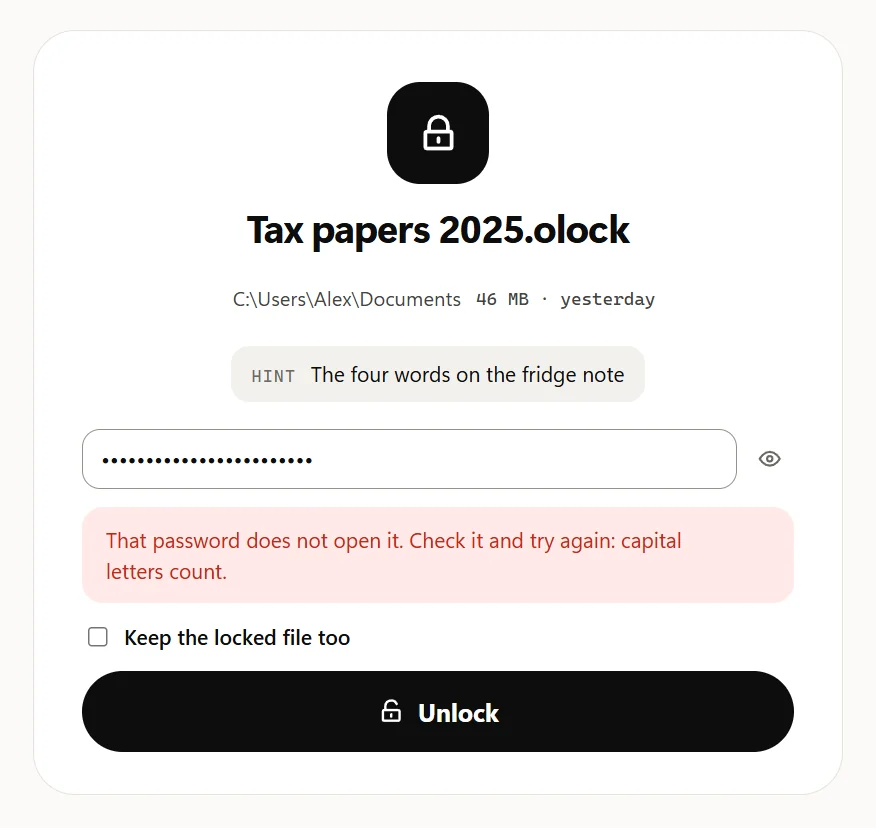
An unlocked folder is an ordinary folder again. When you have finished with it, lock it again the same way.

Keep it safe
- Keep the password somewhere safe. There is no reset and no copy: if it is forgotten, nobody can open the folder, not you and not Octoolo. Write it down and keep it with your important papers, or store it in a password manager such as Octoolo's Passwords.
- Keep a backup. A locked file is still an ordinary file: anyone using your PC can move or delete it, they just cannot open it. Copy it to a USB drive or another disk from time to time; it stays locked there too.
- The original is deleted, not sent to the Recycle Bin. That way no unlocked copy is left behind in the bin.
- Some folders cannot be locked whole: a whole drive, Windows' own folders, and your Desktop, Documents, Downloads, Pictures, Music and Videos folders themselves. The folders inside them lock fine.
How the lock works
For the curious: your password is turned into a 256-bit key with Argon2id, set to use 64 MiB of memory and take about half a second, so trying passwords one after another is very slow. The folder is then encrypted with XChaCha20-Poly1305, in pieces that are each checked when it is opened, so a locked file that was changed, damaged or cut short does not open, and Octoolo says so. Everything happens on your PC: nothing is uploaded, and the password is never stored.
More details are on the lock a folder and unlock a folder pages.


